Licence
Licences in Stack Console
The Licences tab in the Stack Console allows administrators to configure how services are priced, billed, and contracted. Through this tab, you can set pricing schemes, enable service contracts, define billing cycles and cancellation terms, and offer free trials. Proper configuration ensures flexible licensing models that align with both business and customer needs.
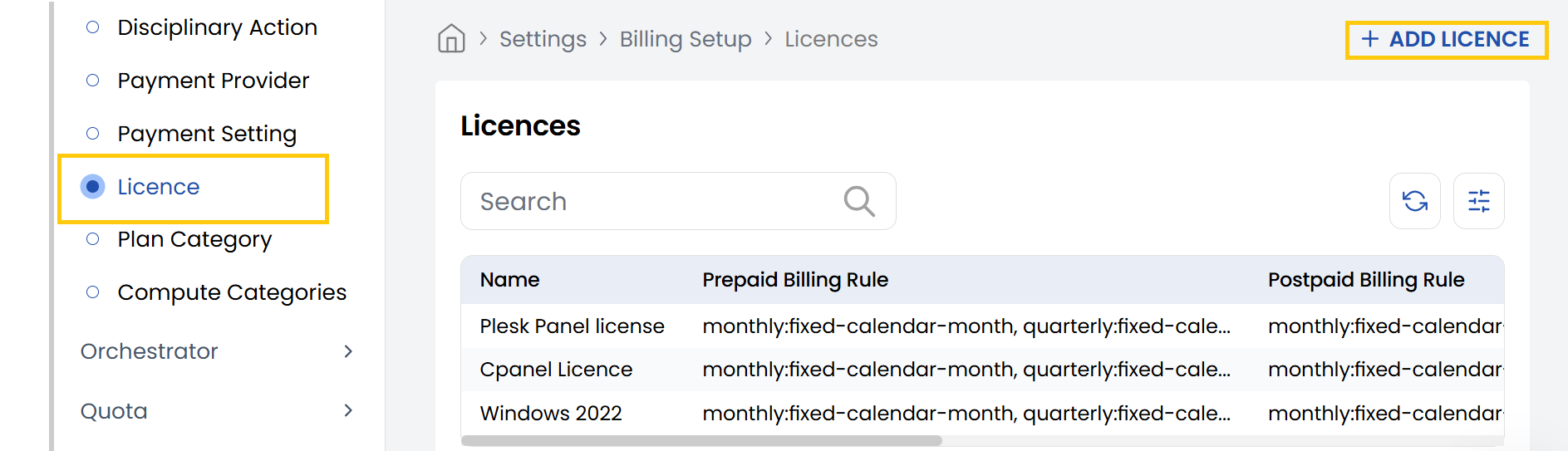
- From the left-hand side of the page under the Billing Setup section, click on Licence to view the list of licences.
- To create a new licence, click on Add Licence.
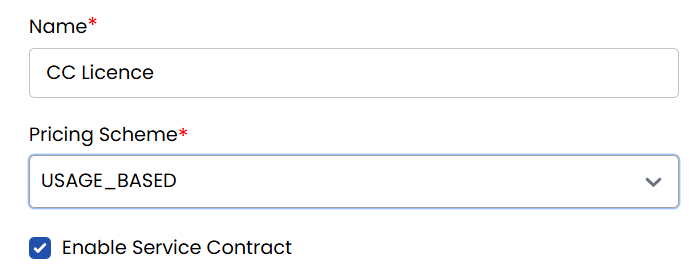
- Name: Enter the name of the licence.
- Pricing Scheme: Select the pricing model. Available option such as USAGE_BASED (billing is calculated based on usage metrics).
- Enable Service Contract: Check this option to activate service contract.
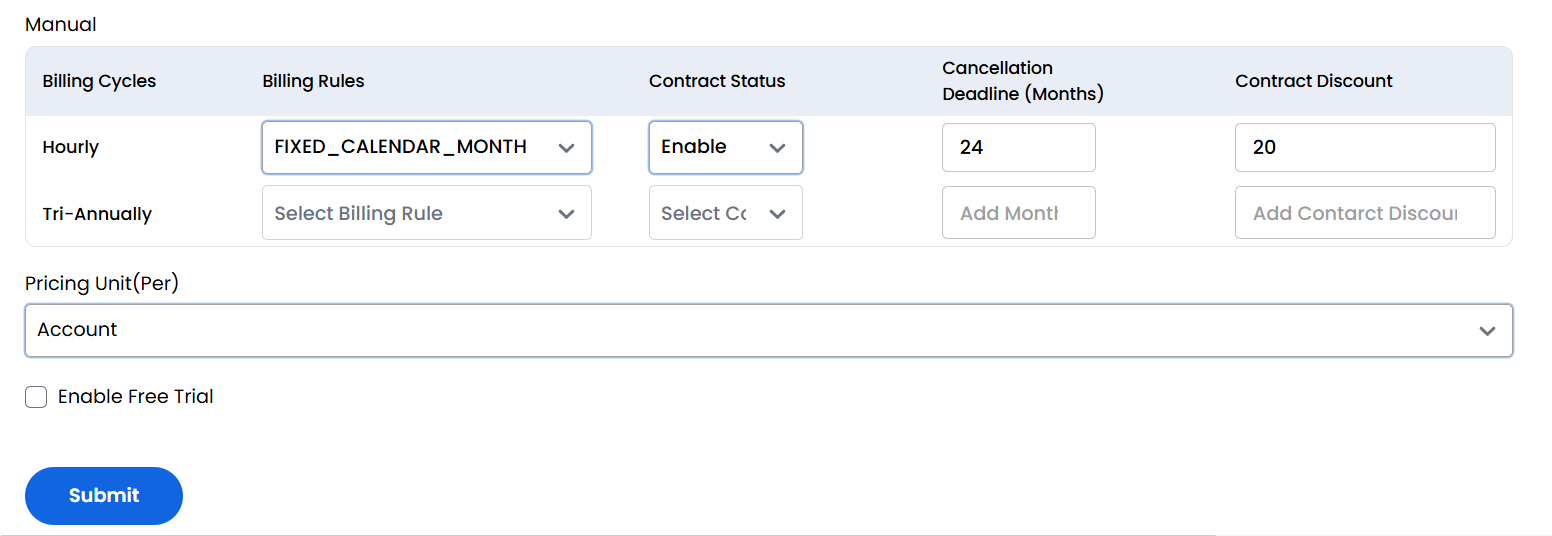
You need to enter billing details for licence. Select the type of billing from Manual, Prepaid and Postpaid.
-
Billing Cycles – Define how often the user will be billed (e.g., Monthly, Yearly).
-
Billing Rules – Set specific rules for invoicing and usage tracking.
-
Contract Status – Choose the current status (e.g., Draft, Active).
-
Cancellation Deadline (Months) – Define the number of months' notice required for cancellation.
-
Contract Discount – Specify any discount (%) that applies to the contracted term.
-
Select Pricing Unit (Per): Choose how the pricing is applied. Options include:
- Core – Pricing based on number of CPU cores used.
- Account – Pricing per account (flat fee per customer).
- Storage – Pricing based on storage used (e.g., GB/TB).
- Instance – Pricing per virtual machine or compute instance.
-
Enable Free Trial: Check this option if you want to offer a trial period before billing begins.
Add Licence Pricing to Rate Card
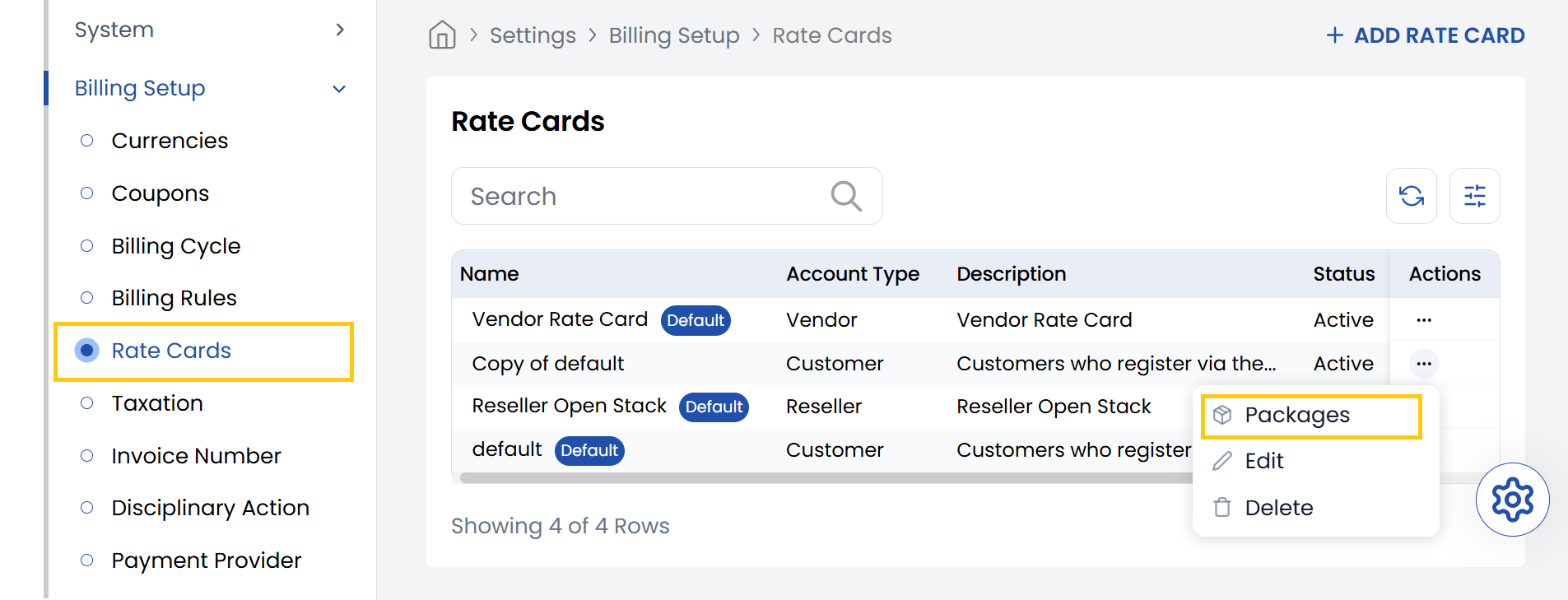
- To add or update licence pricing to a rate card from the left-hand side of the page under the Billing Setup section, click on Rate Cards to view the list of rate cards.
- Click on three dots besides rate card and select Packages.
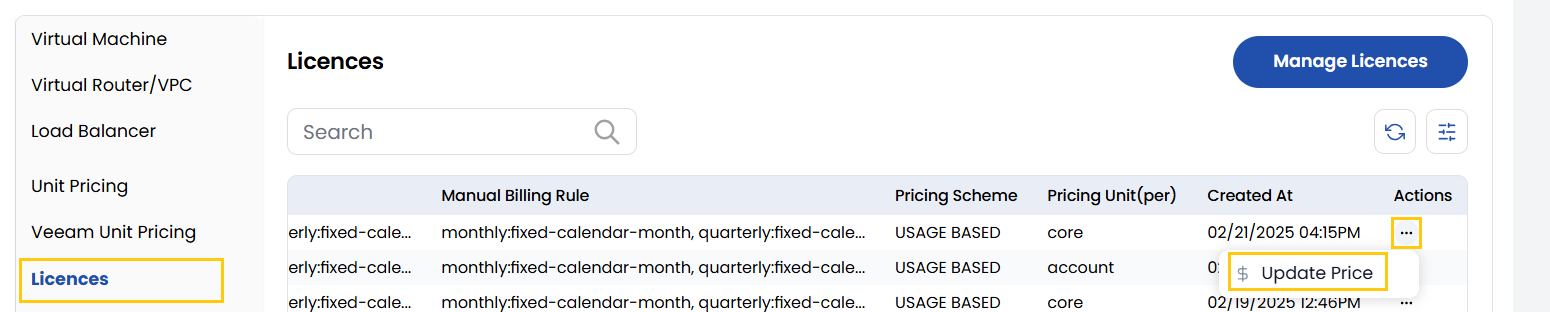
- Navigate to the licences, click on three dots besides the licence and select update price.
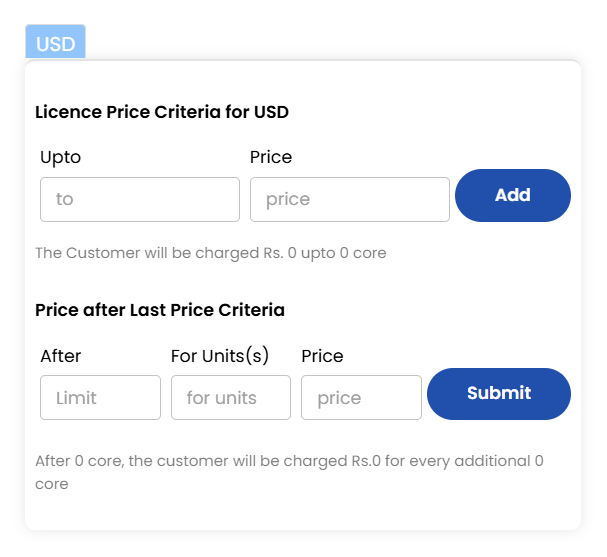
- To update the licence pricing, first go to the Licence Price Criteria section. In the Upto and To fields, enter the core limit range (for example, from
0to2). Then, input the fixed Price for that range (e.g.,200000). Once you've filled in these details, click on Add to save the pricing rule. - Next, go to the Price after Last Price Criteria section to configure pricing beyond the last specified range. In the After field, enter the final core limit from the previous section. Specify how many additional cores the price should apply to in the For Unit(s) field, and set the corresponding Price. Finally, click Submit to update and apply the new pricing settings.
Attach Licence to OS Version
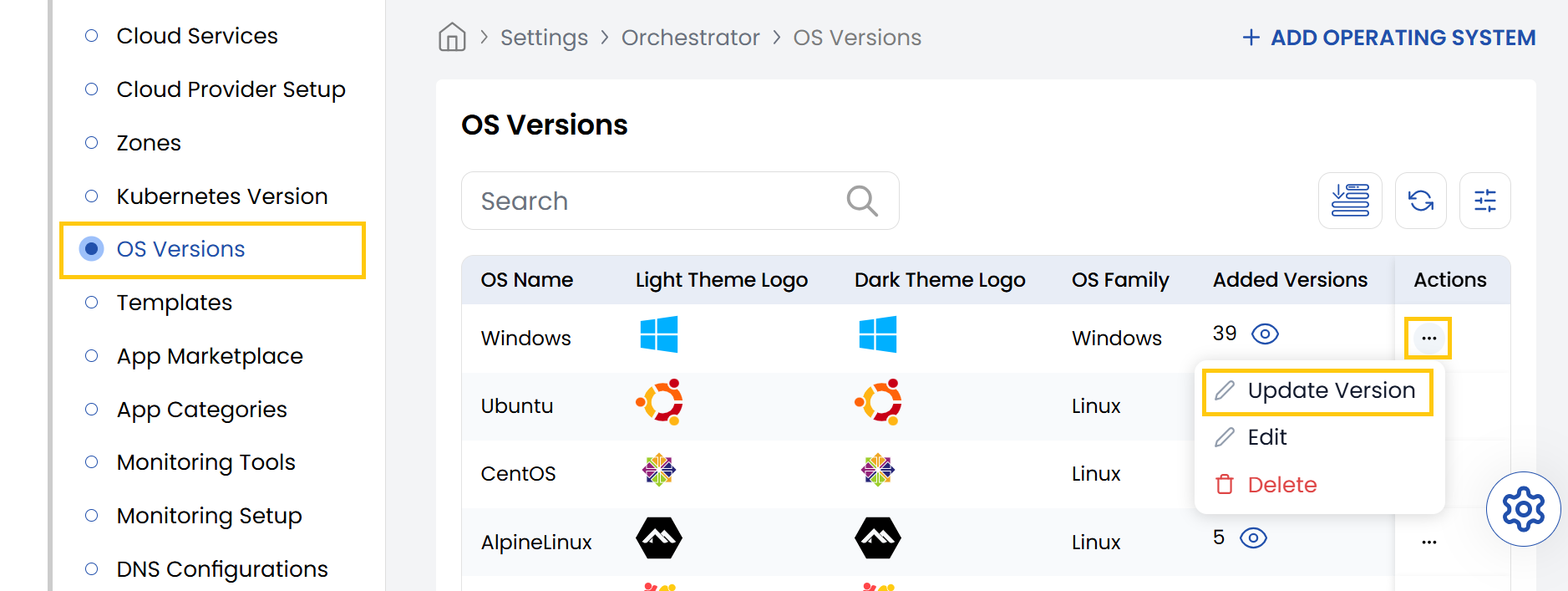
- From the left-hand side of the page under the Orchestrator section, click on OS Versions to view the list of different OS Versions. Click on three dots besides listed OS and select Update Version.
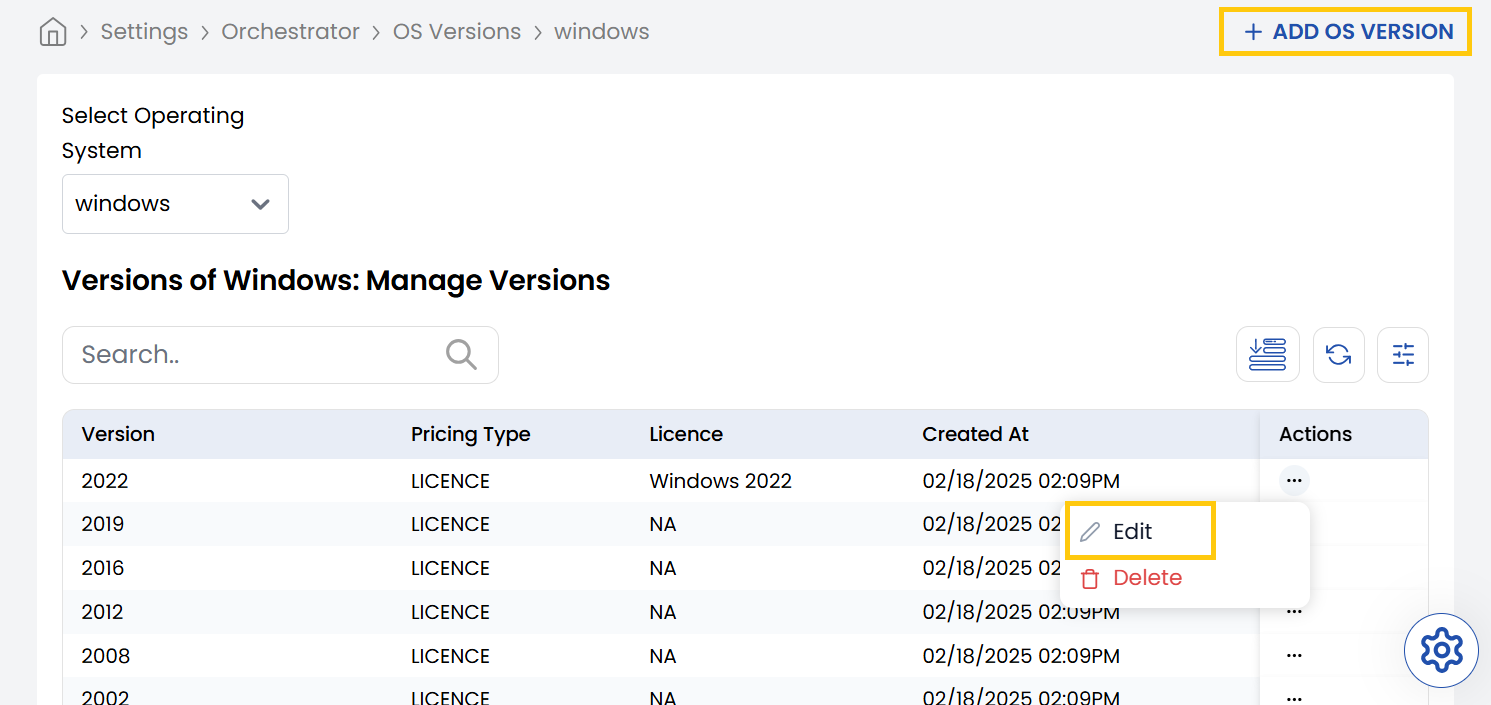
- You will see list of versions listed. Click on three dots besides listed OS versions and select Edit to edit licence.
- Alternatively, you can create new OS version. Click on Add OS Version.
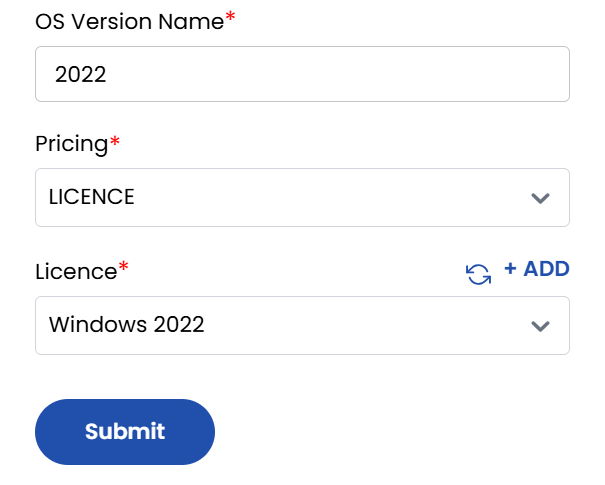
- Enter the OS version name, select the pricing type as Licence and select the licence you want to attach with the version. Click on Submit.
Add Template with OS Version
Conclusion
The Licence section provides comprehensive control over service pricing and contracting models. For licence configuration assistance, contact Stack Console support.